Last updated: July 10, 2026 · Reviewed for accuracy · 10 min read
How to Use Muse Image — A Complete Guide
Learn how to get the most from Muse Image — creating images from text, editing photos with precision, and composing multiple references into one coherent result. This guide walks through prompts, targeted editing, multi-reference composition, agentic tools, and how credits work.
Quick Start: Your First Image in 5 Steps
No setup required. You can create your first AI-generated image in under a minute.
- 1
Open Muse Image
Go to muse-image.co in any browser on desktop or mobile, then sign in. New accounts start with free credits — no install required.
- 2
Write a prompt
Describe what you want to see in plain language — Muse Image understands conversational instructions. For example: "A golden retriever wearing a tiny chef hat, cooking pasta in a miniature kitchen, warm lighting, Pixar style."
- 3
Wait for generation
Muse Image plans the composition, refines the details, and generates your image. This usually takes a few seconds depending on complexity and resolution.
- 4
Edit if needed
Describe a change or mark the exact region you want different: "Make the hat red instead of white." Muse Image edits only the area you point to.
- 5
Download your image
Save the finished image to your device. There is no watermark, and images from paid credit packs include a commercial-use license.
Text-to-Image: Creating Images From Scratch
Muse Image generates images from plain-language descriptions. Unlike older models that require specific prompt syntax, Muse Image interprets conversational instructions and handles ambiguity through its reasoning capabilities.
When you submit a prompt, Muse Image doesn't immediately start generating pixels. It first plans the composition — deciding where objects go, how lighting should fall, and what style to apply. If your prompt references real-world information (a specific landmark, a current event, a public figure's clothing style), the model can search the web to ground the image in accurate visual references.
The model handles complex instructions well. You can specify multiple objects, their spatial relationships, camera angles, lighting conditions, artistic styles, and even request readable text within the image. For example, a prompt like "A hand-drawn map of a fictional island with labeled locations, weathered parchment texture, ink illustrations, compass rose in the corner" produces an image with legible text labels and coherent spatial layout.
Example prompts for text-to-image
"A tiny mouse running a miniature Italian restaurant out of a hole in a brick wall — checkered tablecloth on a matchbox table, a birthday candle chandelier, and a thimble of tomato soup for the guest. Soft warm light, macro photography style."
"A glossy magazine page with an editorial fashion portrait, mathematical formulas in gold accents, modern typography, studio lighting."
"A cozy bookshop interior at golden hour, floor-to-ceiling oak shelves, a tabby cat sleeping on a velvet armchair, warm light through arched windows, oil painting style."
💡 Tip: The more specific your prompt, the closer the output matches your vision. Include details about lighting, camera angle, style, and materials. But don't over-specify — Muse Image fills in reasonable defaults for anything you leave out.
Photo Editing: Change What You Need, Keep What You Don't
Muse Image edits existing photos without regenerating the entire image. Upload a photo, then either describe the change in words or mark the exact region you want modified.
Targeted marking is the fastest way to make precise edits. Point to a person you want removed, indicate where a new element should go, or add instructions for a specific area. Muse Image interprets what you mark and applies changes only there.
Because Muse Image remembers the full context of your session, you can make multiple rounds of edits without starting over. Each edit builds on the previous result. You might start with "Remove the person in the red jacket," then follow up with "Now change the sky to sunset," and then "Add a flock of birds in the upper left." Each instruction refines the same image.
Image Editing
Muse Image makes targeted edits — restoring old photos, adjusting a single detail, or transforming a whole scene — while keeping everything you didn't ask to change. Drag the slider on each example to compare before and after.
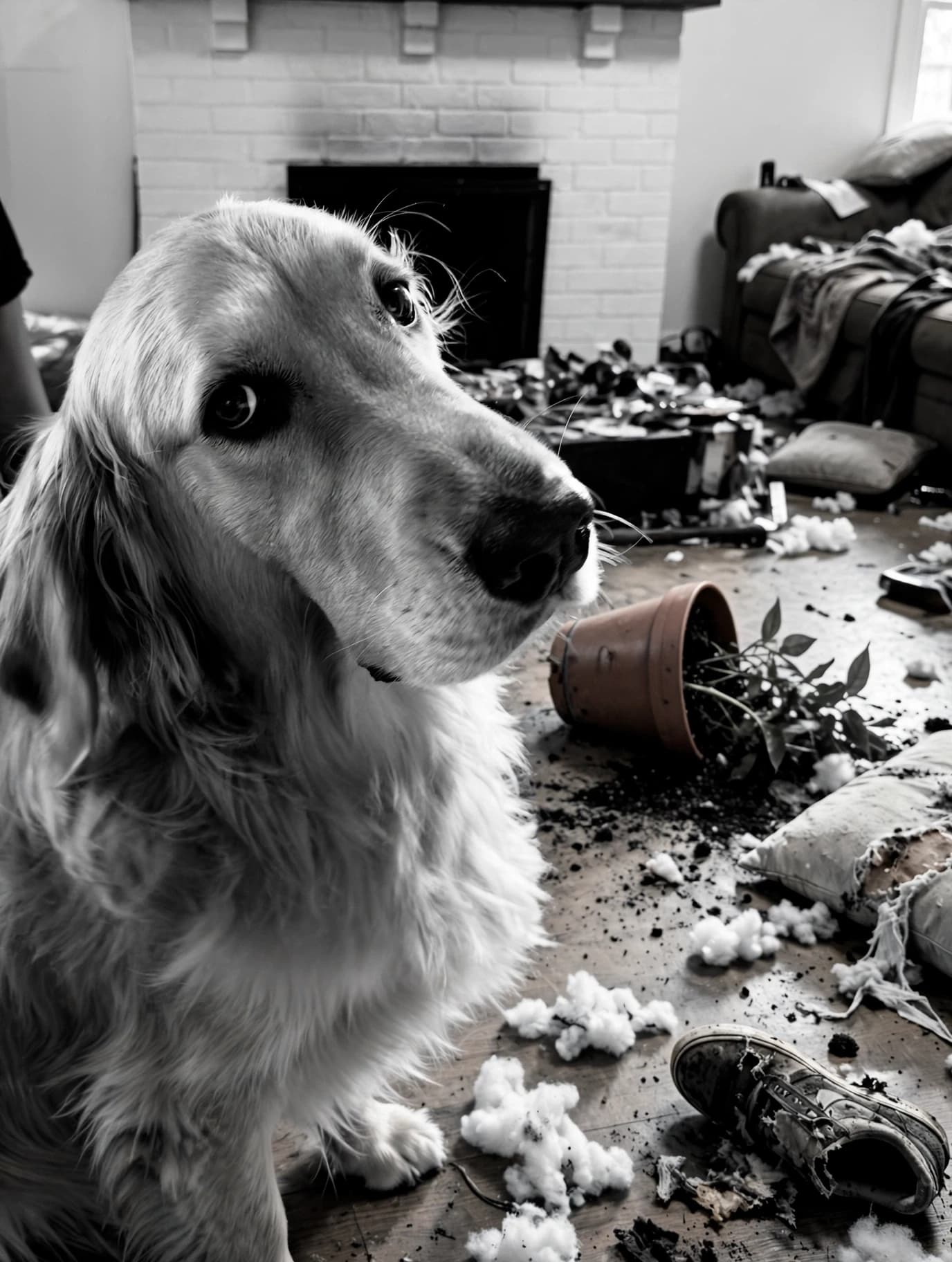
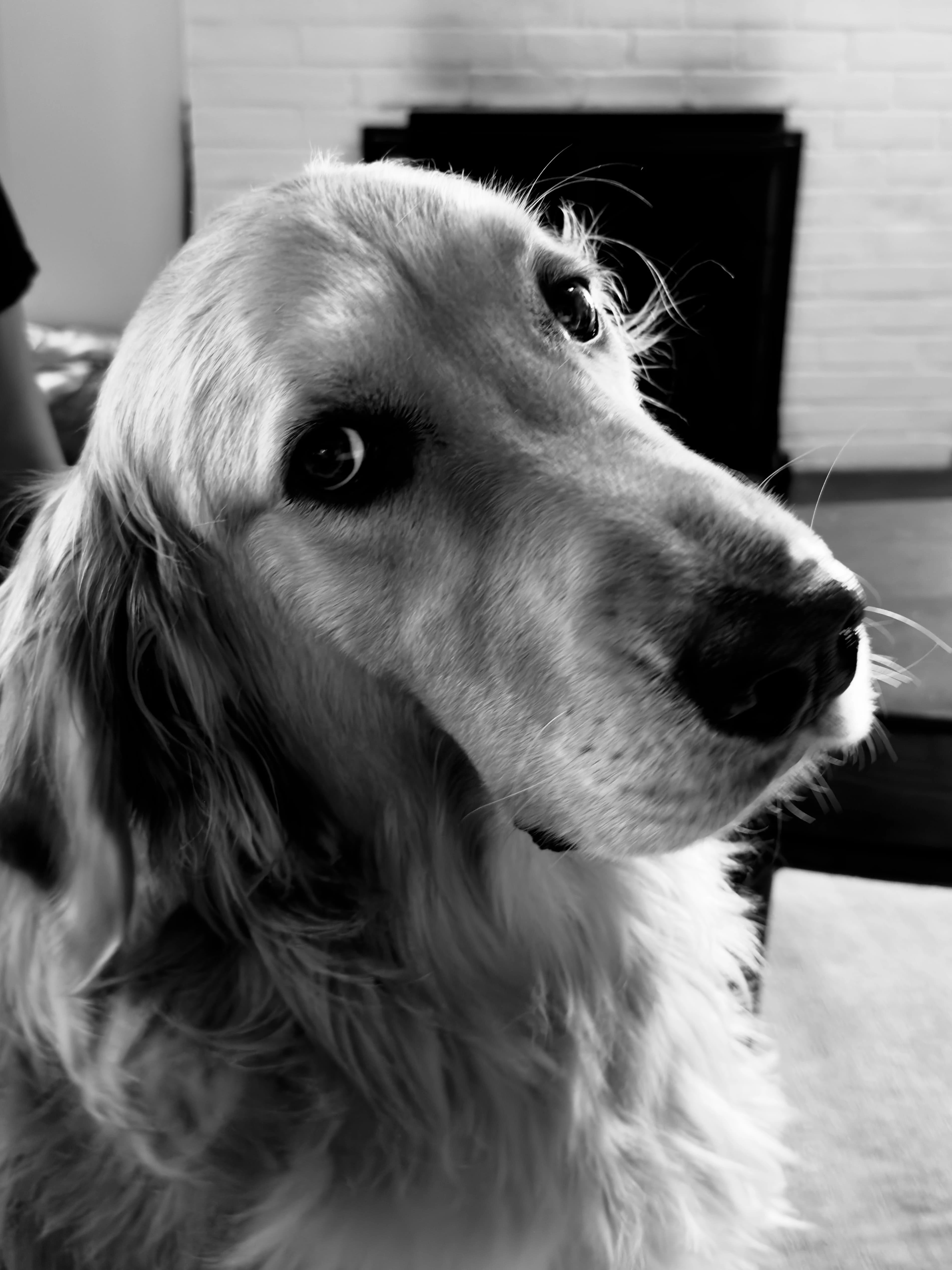
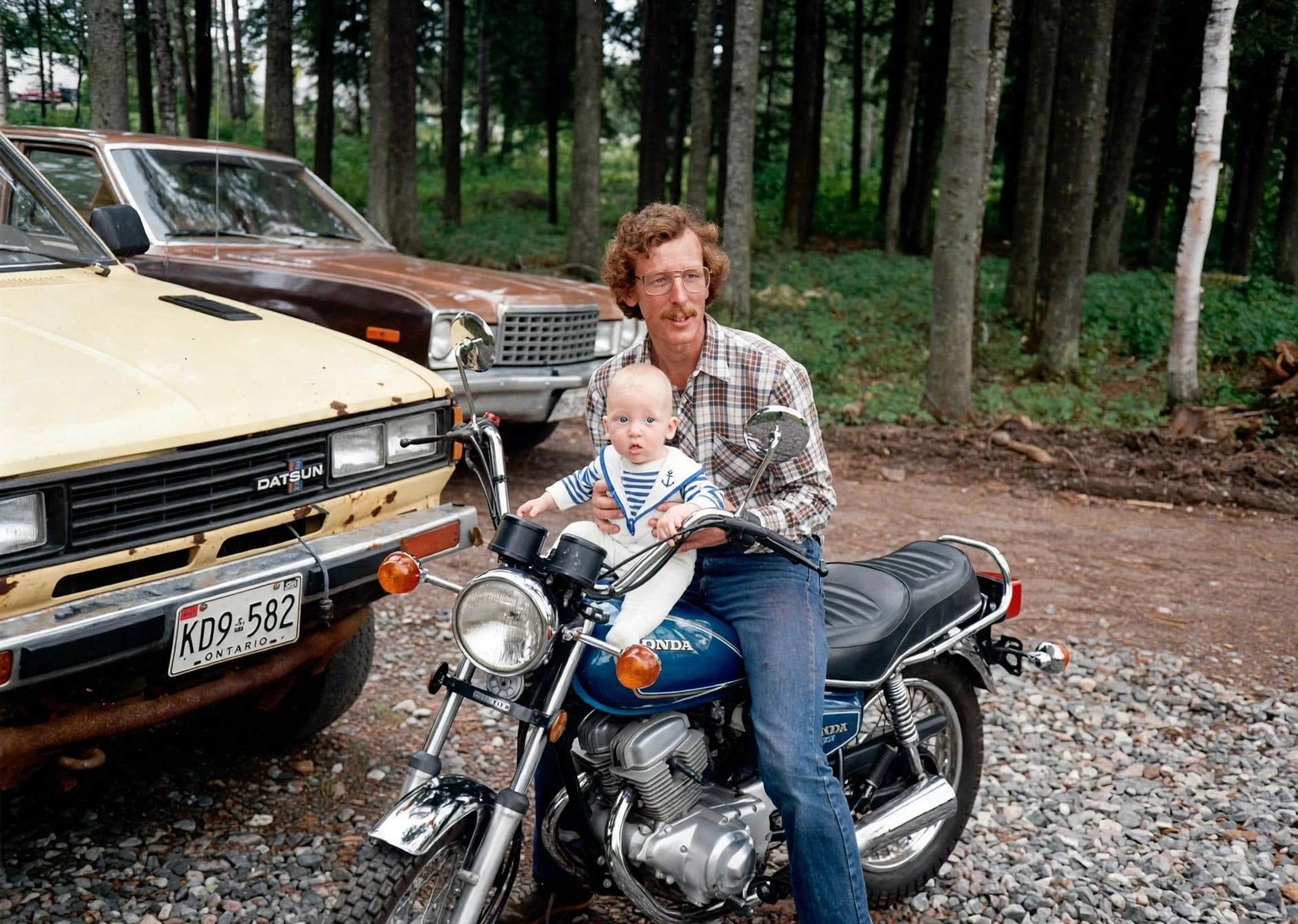
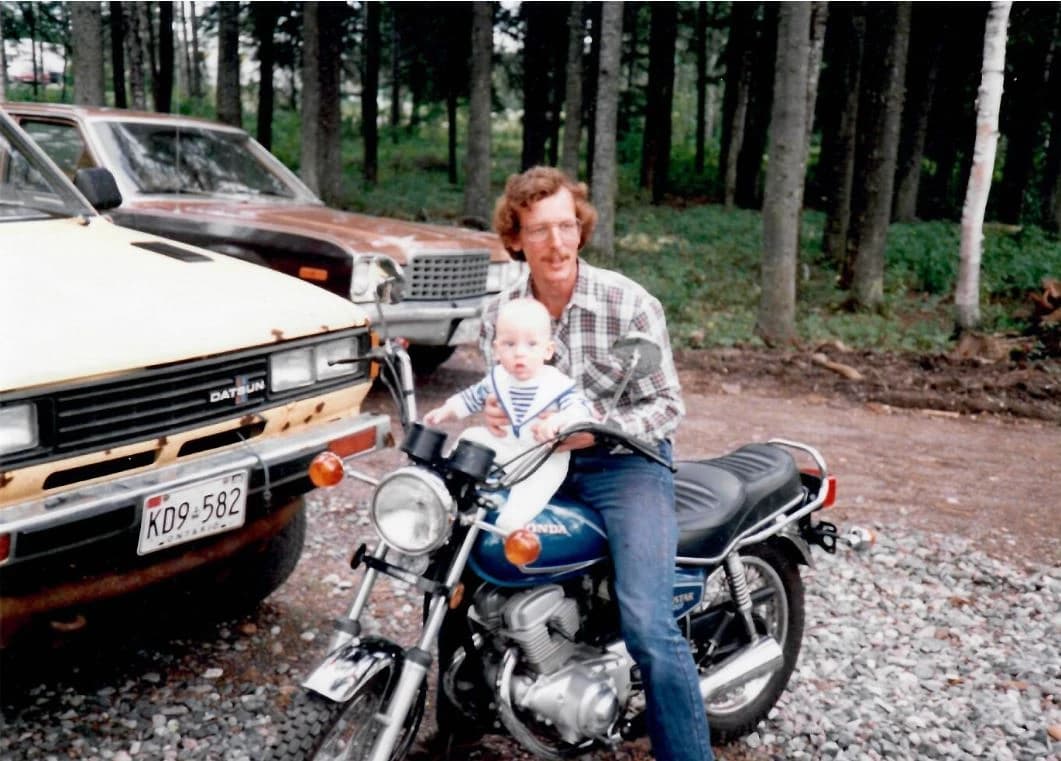
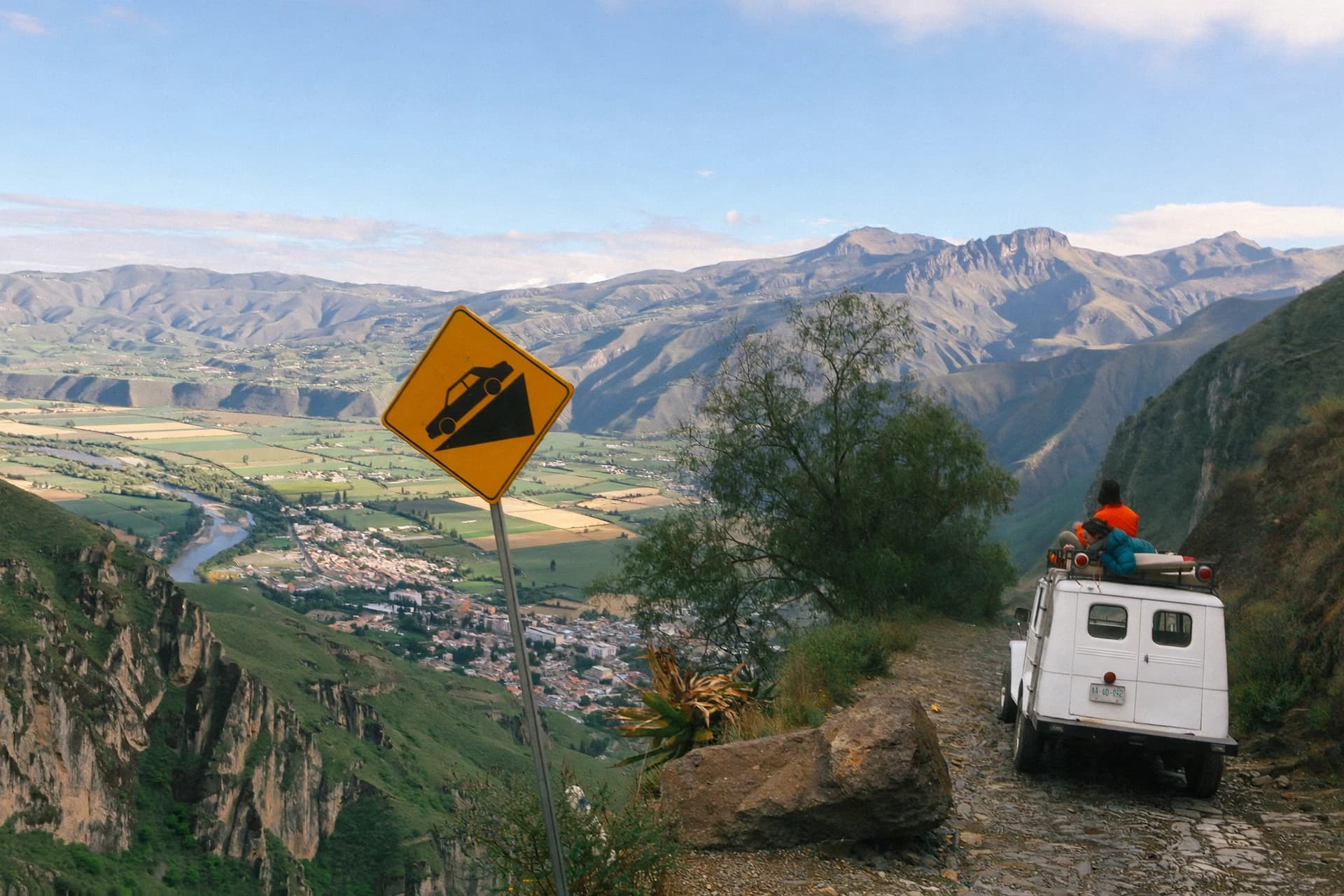
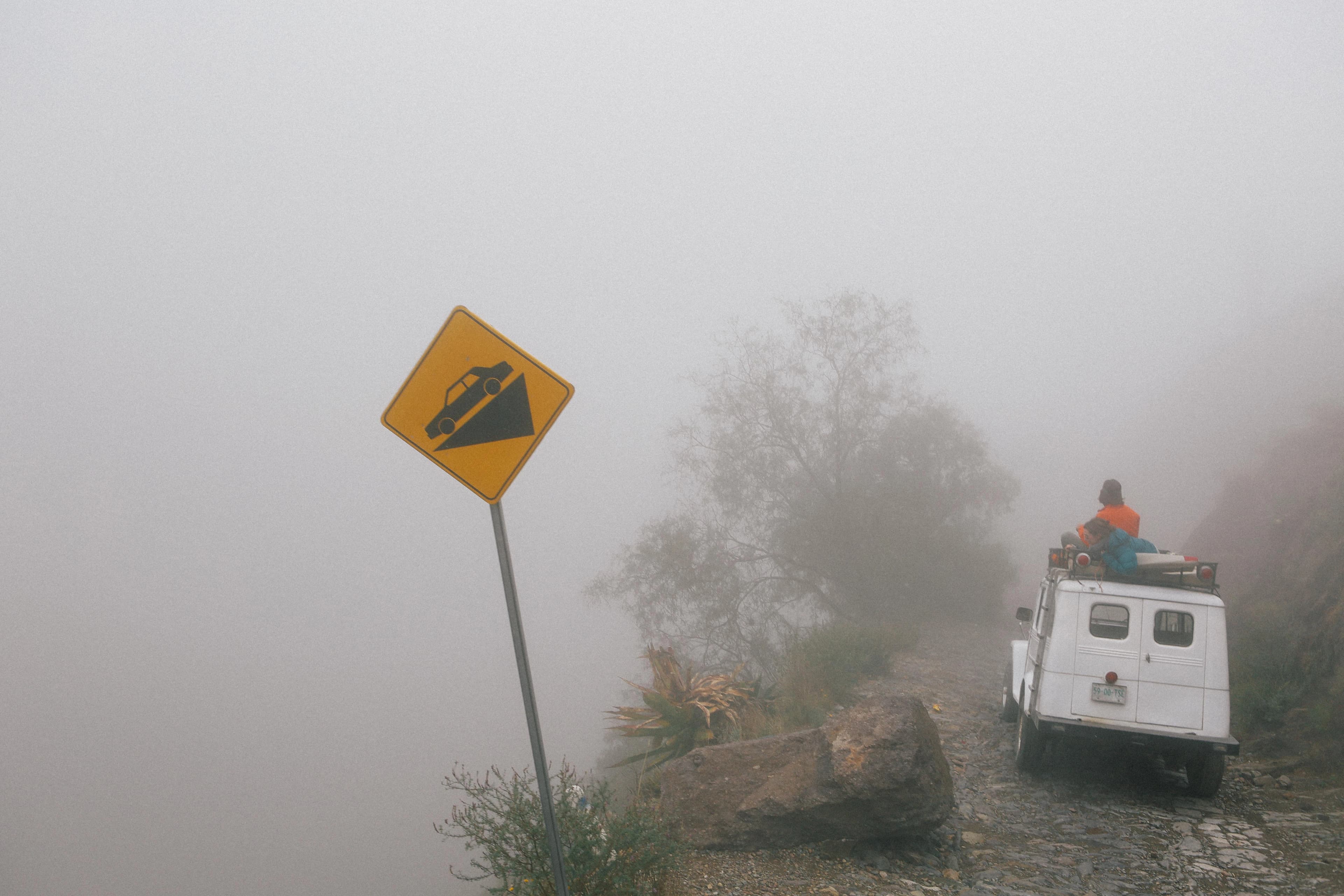
| What You Want | What to Say or Do |
|---|---|
| Remove an object or person | "Remove the person in the background" or point to them |
| Change a background | "Replace the background with a beach at sunset" |
| Swap colors or styles | "Change her dress from blue to red" |
| Add an element | "Add a potted plant on the left side of the desk" |
| Fix lighting | "Make the lighting warmer, like golden hour" |
| Restore an old photo | Upload the photo and say "Restore this old photo" |
| Change artistic style | "Redraw this in watercolor style" |
💡 Tip: For precise edits, mark the exact area you want changed. For broader changes (style, lighting, mood), a text description works better. You can combine both — point to an area and add text instructions for that region.
Muse Image keeps a scene consistent across a chain of edits, so you can refine step by step and explore ideas without losing what already works.
Step through each thread to see how a single image evolves over multiple turns.
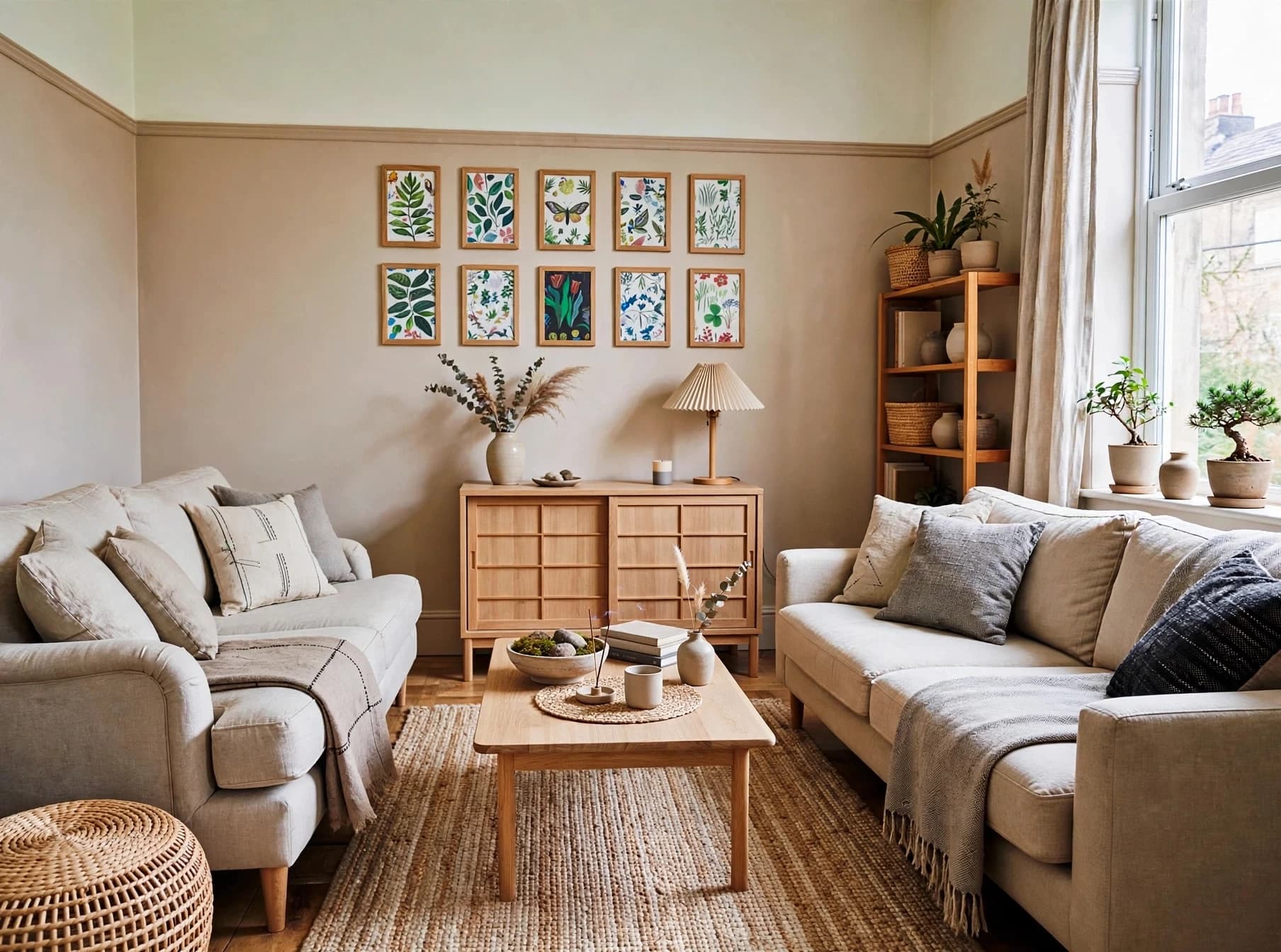
Here is my living room Can you imagine it in Japandi style?
1 / 3
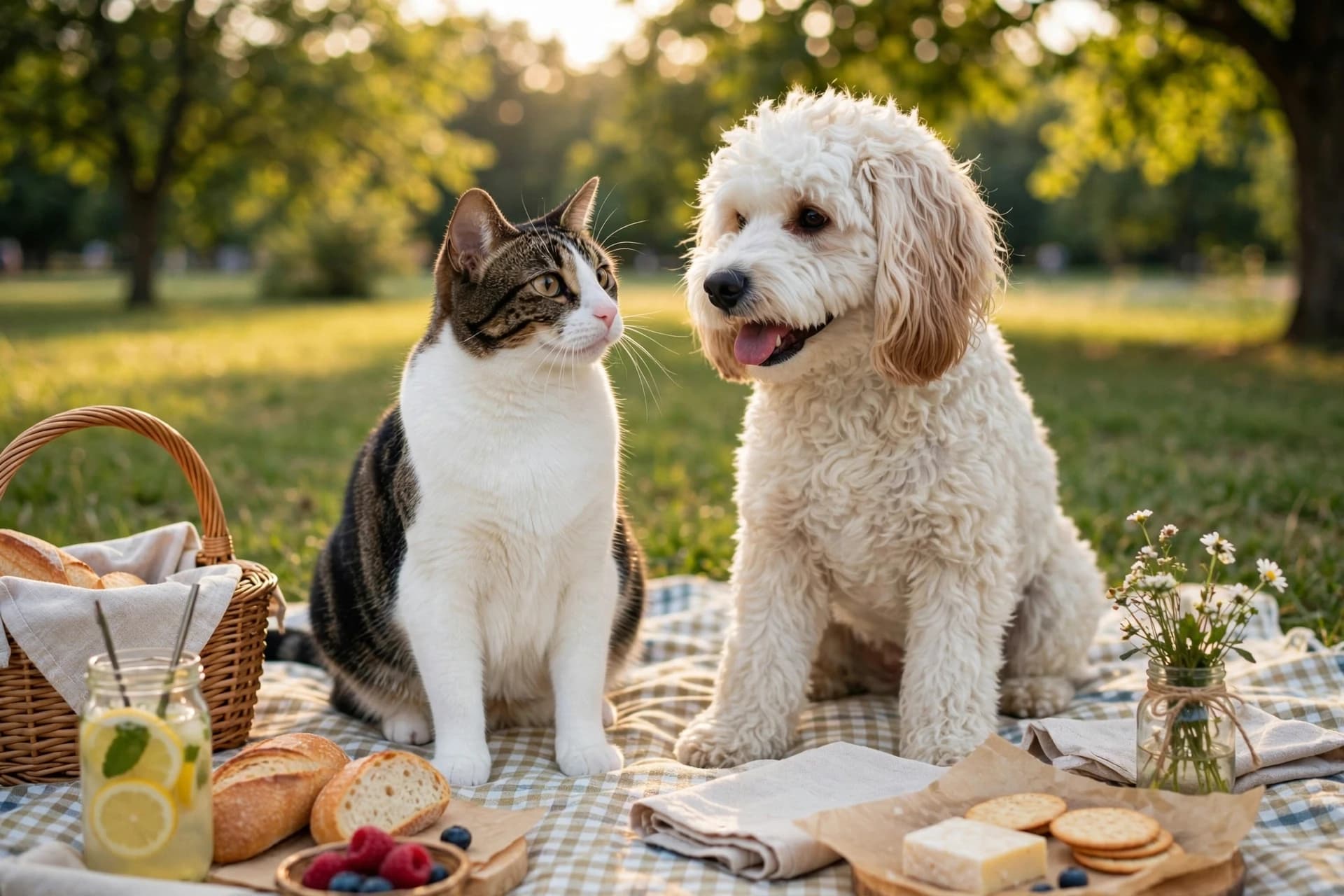
Make an image of this cat and this dog as best friends having a picnic on a sunny day. Vintage 35mm style
1 / 5
Multi-Reference Composition: Blend Multiple Images Into One
Muse Image can combine multiple visual inputs into a single coherent image. Upload a selfie and a landscape photo, and ask it to place you in that scene. Provide a style reference image alongside a content description, and it applies that visual style to your creation.
This capability goes beyond simple collage or overlay. Muse Image understands identity — it can maintain a face, body proportions, and clothing across different contexts. It also understands spatial relationships, so when you ask for someone "standing on the beach looking at the horizon," the model handles perspective, lighting consistency, and shadow direction automatically.
Common use cases include combining a profile photo with a travel destination, merging product photos with lifestyle backgrounds, creating custom event invitations featuring multiple people, and applying an artistic style from one image to the content of another.
Example workflow
Input 1: Your profile photo (selfie)
Input 2: A photo of the Eiffel Tower at sunset
Prompt: "Place me standing in front of the Eiffel Tower, looking up at it. Keep my face and outfit exactly as they appear. Golden hour lighting, travel photography style."
Result: A photorealistic composite that looks like you were actually there.
Multi-Reference Image Composition
Muse Image can pull people, objects, clothing, styles, and environments from several uploaded references and blend them into one image. You can interleave those references with text right in the prompt — each reference slot is marked inline below.
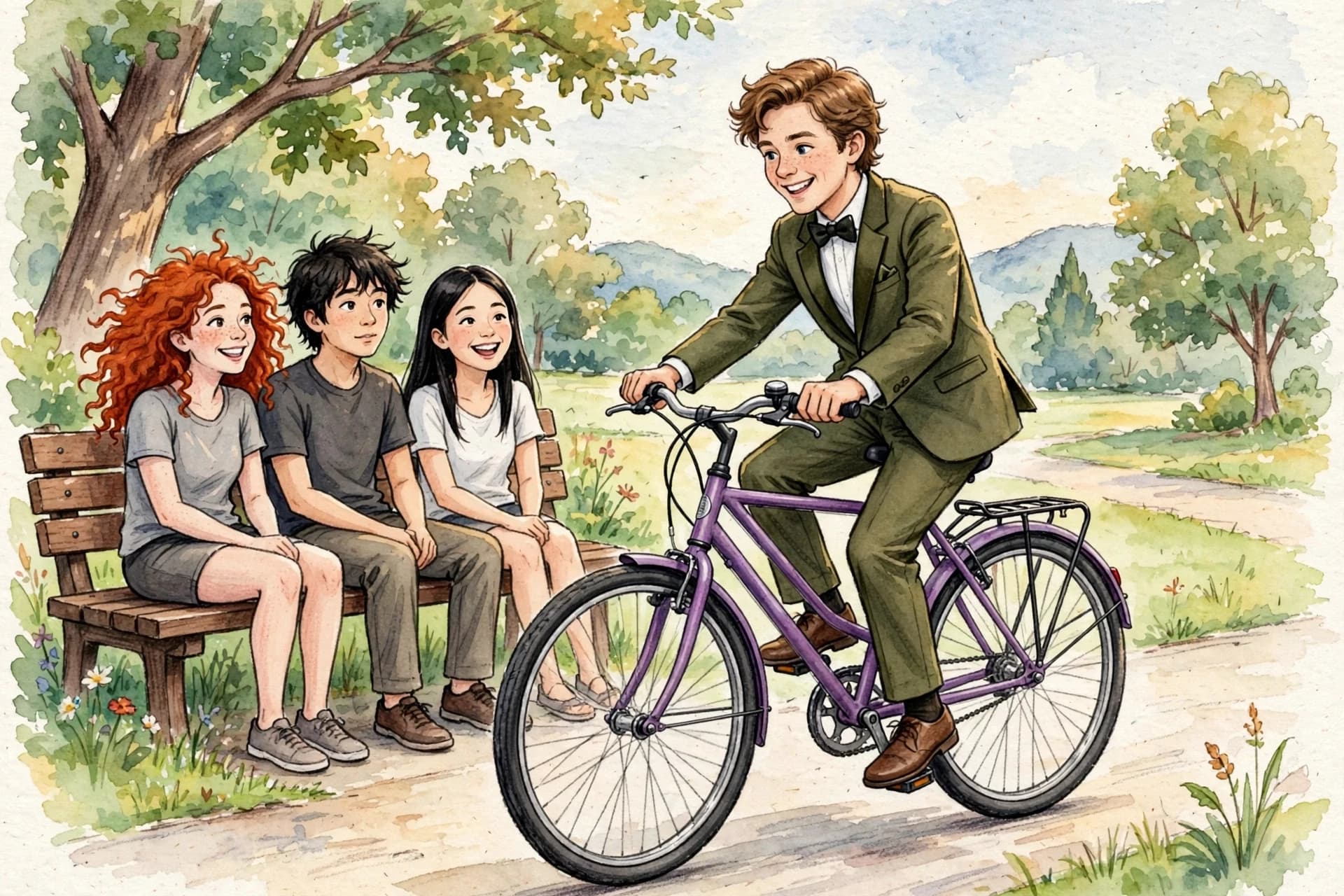
Create a scene with  riding
  while wearing
  . He passes

 chatting on a park bench. Render the full scene as a hand-drawn illustration in this style
  .
.
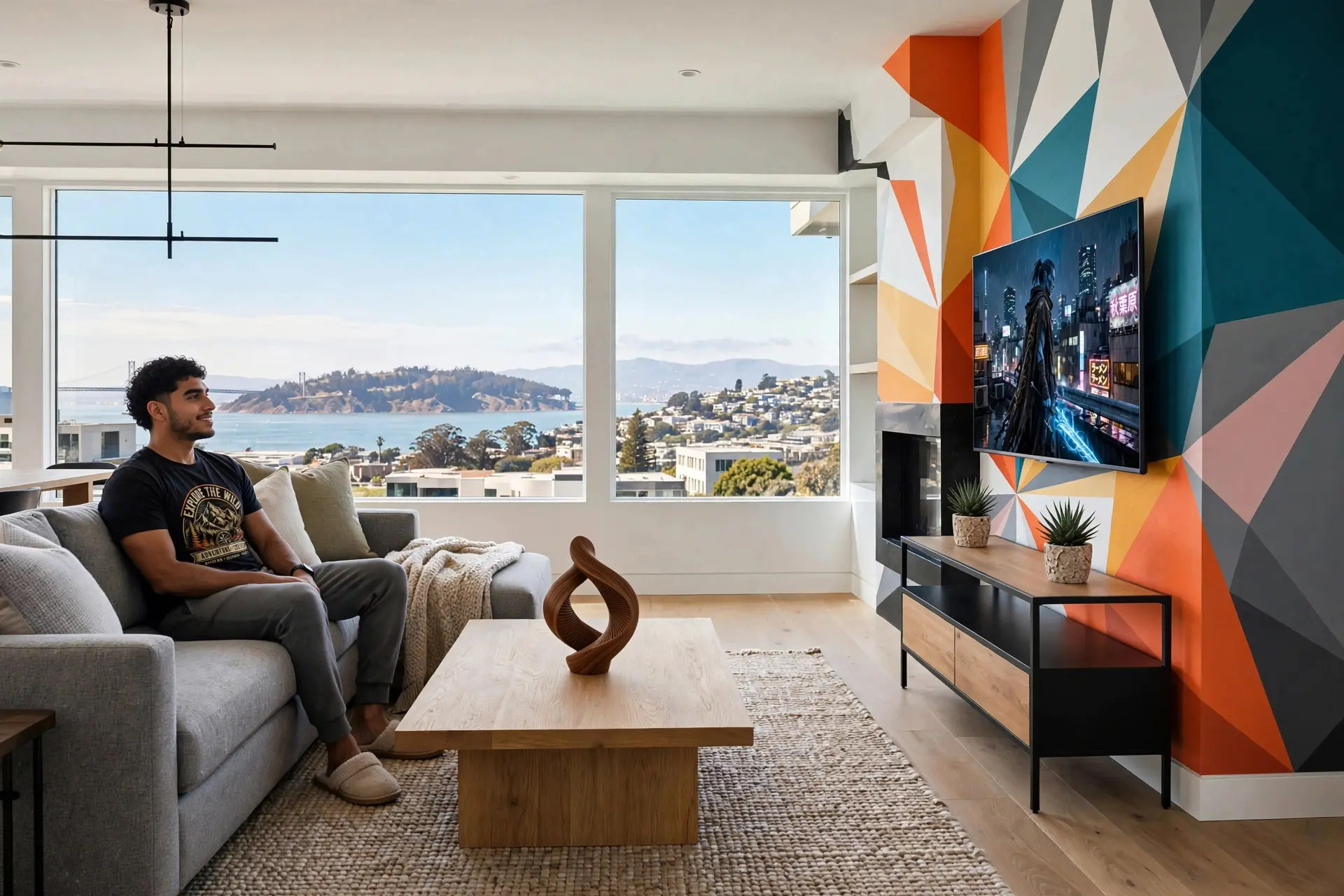
Start with my living room  and recolor the back wall using this pattern
  . Place
  on the coffee table, add two of
  on the credenza, and mount a large flat-screen TV showing
  . Then seat
  on the couch in
  ,
,  , and
, and  with no socks.
Agentic Features: Search, Code, and Self-Refinement
Muse Image doesn't just map prompts to pixels — it reasons through your request. The model has access to three agentic capabilities that set it apart from traditional image generators.
Web search
Web search lets Muse Image look up real-time information before generating. If your prompt references a current event, a specific product, or a factual detail, the model searches the web and uses the results as visual references. This grounds the output in reality rather than hallucinating details.
Code execution
Code execution enables Muse Image to generate accurate charts, graphs, QR codes, and data visualizations. Rather than drawing an approximate chart, the model writes code to render the visualization precisely, then incorporates the rendered output into the image. A prompt like "Create a functional QR code that links to example.com" produces a scannable QR code.
Self-refinement
Self-refinement means the model reviews its own output and iterates. After generating a first draft, Muse Image compares it against your prompt, identifies areas that don't match, and regenerates those parts. In practice, quality scales with the time the model spends refining.
Writing Better Prompts: What Works and What Doesn't
Muse Image understands natural language, so you don't need specialized syntax. But certain patterns consistently produce better results. Here's what we've found works.
✅ DO
Be specific about visual details
"A red brick building with green ivy climbing the left wall, morning light casting long shadows, 35mm film photography"
→ Gives the model enough anchors to produce a coherent scene.
Specify the style or medium
"Oil painting style" / "Macro photography" / "Editorial magazine layout" / "Pixar 3D render"
→ Without a style cue, Muse Image defaults to photorealistic, which may not be what you want.
Describe spatial relationships
"A cat sitting ON the windowsill, looking OUT at the rain"
→ Prepositions matter. They define where objects go relative to each other.
Include lighting and mood
"Warm golden hour light" / "Dramatic side lighting" / "Soft overcast, muted colors"
→ Lighting is the single biggest factor in image mood.
Use the conversation history
"Now make the sky more dramatic" / "Add a person walking on the left"
→ Each message builds on the previous image without starting over.
❌ DON'T
Write one-word prompts
"Dog" → Too vague. Muse Image will produce something generic.
Better: "A golden retriever puppy playing in autumn leaves, shallow depth of field, backlit"
Over-specify every pixel
A 200-word prompt with conflicting instructions confuses the model.
Better: Focus on 3-5 key details and let Muse Image fill in the rest.
Use negative prompts
"No blur, no artifacts, no bad hands" → Muse Image doesn't reliably interpret negations.
Better: Describe what you DO want, not what you don't.
Expect exact text reproduction
Complex paragraphs of text in images may have errors.
Better: Keep text short — labels, titles, single sentences work best.
Pricing & Credits
Muse Image runs on credits — buy once, no subscription. New accounts start with free credits, and packs never expire. Each image costs credits based on its output resolution.
How credits are spent
| Resolution | Cost |
|---|---|
| 1K | 2 credits / image |
| 2K | 3 credits / image |
Credit packs
| Plan | Price | Credits | Approx. images |
|---|---|---|---|
| Free | Free | 2 credits | ≈ 1 image at 1K |
| Starter | $9.9 | 150 credits | ≈ 75 images at 1K |
| Plus | $29.9 | 540 credits | ≈ 270 images at 1K |
| Pro | $49.9 | 1100 credits | ≈ 550 images at 1K |
Frequently Asked Questions
Is Muse Image free to try?
Yes. New accounts start with free credits, so there is no paywall just to see what it can do. When you need more, one-time credit packs top you up — no subscription required.
Do I need to install an app?
No. Muse Image runs in your browser at muse-image.co on both desktop and mobile. Sign in and start creating — nothing to download.
Can Muse Image edit only part of a photo?
Yes. Describe the change or mark the exact region you want different, and Muse Image edits only that area while preserving the rest of the image.
Can I use my own photos as references?
Yes. Upload one or more images — people, products, clothing, styles, or environments — and Muse Image composes them into a single coherent result.
Can Muse Image render readable text inside images?
Yes. It produces legible, styled text for posters, labels, infographics, and covers. Keep text short — titles, labels, and single lines are the most accurate.
How much does Muse Image cost?
Images cost credits based on output resolution: 2 credits at 1K and 3 credits at 2K. Start with free credits, then buy one-time packs from $9.9. Credits never expire.
Do my images have a watermark?
No. Images you create are watermark-free, and images generated with paid credit packs include a commercial-use license.